How to Build a Gaming PC on a Budget: A Practical Step-by-Step Guide
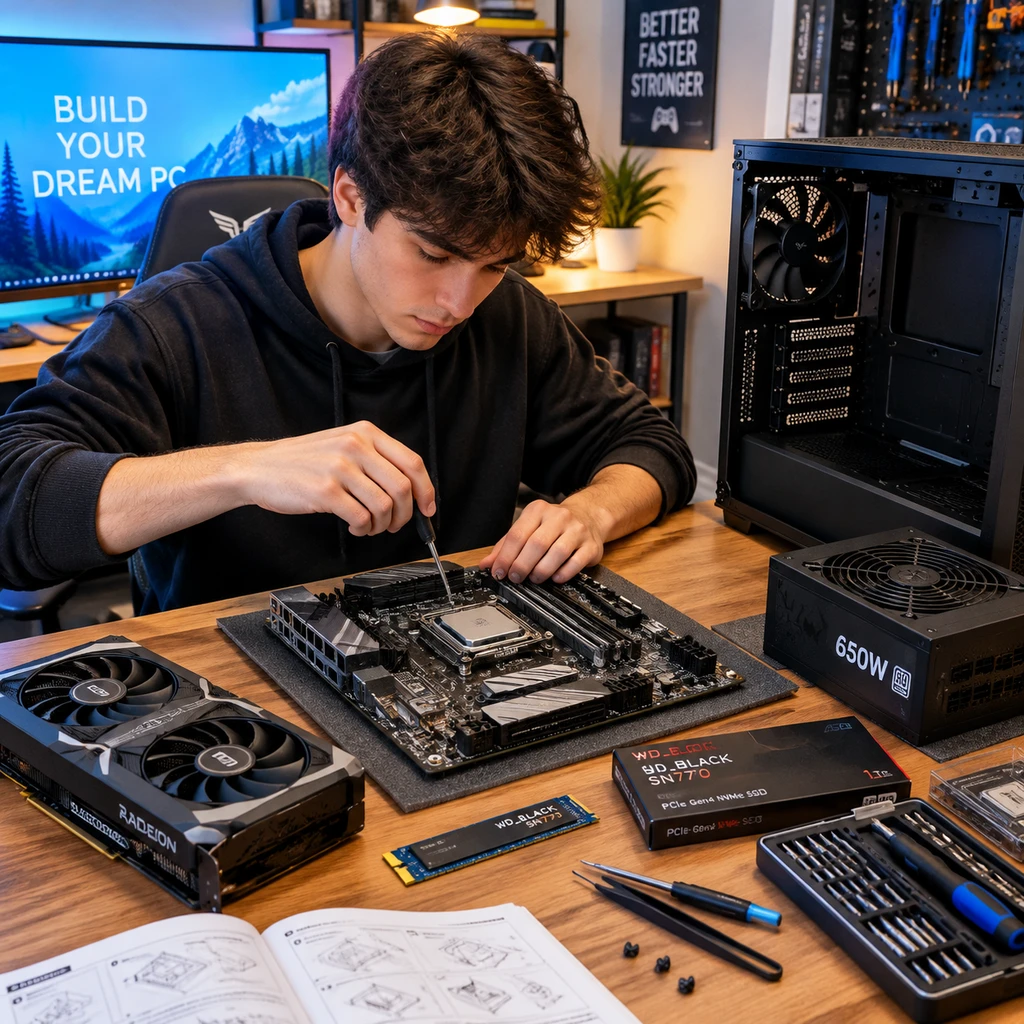
A budget gaming PC can deliver smooth play and reliable streaming when you match its components to the games and resolution you actually use. The key is to spend where performance depends on it, check compatibility before ordering, and leave room for a sensible upgrade later.
Set a realistic budget and define your needs
To set a realistic gaming PC budget, decide whether you mainly want to game, stream, or do both, then choose a target resolution and frame rate. Those choices determine which components deserve the largest share of your money.
Start with the total amount you can spend on the tower, and account separately for items you may still need: a monitor, keyboard, mouse, headset, operating system, and Wi-Fi adapter. If the budget includes everything, putting the entire sum into the PC’s internal parts can leave you without a screen or a way to connect.
Next, consider your actual use. A player focused on esports at 1080p may value high frame rates and a capable CPU, while a visually demanding single-player game often benefits more from a stronger GPU. Streaming adds another requirement: the PC needs enough CPU or GPU encoding capacity to run the game and send a stable stream at the same time.
- Gaming first: Prioritize the graphics card for your target resolution, then choose a CPU that won’t hold it back.
- Gaming and streaming: Look for a CPU with enough cores or a GPU with a suitable hardware encoder, depending on your games and software.
- Upgrade-friendly build: Choose a compatible motherboard and PSU with reasonable room for a future component upgrade, rather than paying extra for features you will not use.
There is no universal parts list that suits every budget. Game requirements, local prices, and whether you already own peripherals can change the best allocation substantially.
Prioritize the components that affect gaming performance
For most budget gaming PCs, balance the GPU and CPU first, then provide enough RAM and a solid-state drive for smooth everyday use. A fast component cannot compensate for a major bottleneck elsewhere in the system.
Graphics card (GPU): The GPU usually has the biggest effect on frame rate and visual settings, especially at 1440p or in graphically demanding games. Check current benchmarks for the specific titles you play; product names alone do not tell you how a card performs. At 1080p, a less expensive GPU may be enough, while higher resolution generally calls for more graphics power and video memory.
Processor (CPU): Choose a CPU that supports your GPU and workload without diverting too much of the budget from graphics. A stronger processor can help with high-refresh-rate gaming, CPU-heavy titles, background apps, and some streaming workflows. For GPU-encoded streaming, a midrange CPU may leave more money for the graphics card.
Memory and storage: For a new gaming build, 16 GB of RAM is a practical starting point; 32 GB can help if you stream, multitask heavily, or play games that use more memory. Confirm the RAM generation supported by the motherboard, and use a matched kit rather than mixing unrelated sticks. An SSD makes startup, loading, and updates more responsive than a hard drive. Choose capacity based on your library, since modern game installs can take up substantial space.
Do not overspend on a premium CPU cooler, decorative lighting, or an expensive motherboard if that money would meaningfully improve the GPU. Those upgrades can be worthwhile for noise, appearance, or features, but they rarely raise gaming frame rates on their own.
Check compatibility before you buy
Component compatibility means every part fits physically and works electrically and electronically with the rest of the PC. Check the CPU socket, motherboard features, RAM type, case dimensions, and PSU connections before purchasing.
Use the motherboard’s support page as the final reference for CPU and memory support. A processor may fit a socket yet still require a BIOS update before the system can start. Also check whether the board has the ports you need, such as enough USB connections, an M.2 slot for an NVMe SSD, and Wi-Fi if you do not plan to use Ethernet.
For physical fit, compare the case’s supported motherboard size with your board’s form factor, and check the maximum graphics card length and CPU cooler height. Confirm that the case includes or supports adequate fans. A powerful GPU in a cramped case with restricted airflow can run hotter and louder than expected.
The PSU must provide enough wattage for the CPU and GPU while offering the required power connectors. Consult manufacturer guidance for the graphics card and leave some sensible headroom; do not treat a larger wattage number as proof of quality. Choose a reputable model with appropriate protections and a warranty.
- Verify CPU socket and BIOS support on the motherboard manufacturer’s site.
- Match RAM generation and check the board’s memory specifications.
- Compare GPU length, cooler height, and motherboard size with the case limits.
- Check PSU wattage recommendations, connectors, and physical size.
A compatibility checker can catch common mismatches, but it may not account for every BIOS revision, case obstruction, or connector detail. Confirm the important specifications directly with manufacturers before you pay.
Save strategically without sacrificing reliability
Save money on features that do not affect your target experience, but avoid cutting corners on the PSU, cooling, or basic system stability. A lower price is useful only if the part works reliably and suits the rest of the build.
Good places to economize include a plain case with decent airflow, a stock CPU cooler when it is adequate, and a motherboard with the ports and expansion slots you actually need. You can also start with one SSD and add storage later. Choosing a previous-generation CPU or GPU can make sense when its current price and performance compare favorably with newer alternatives.
Used components are another option, particularly a GPU or CPU from a trustworthy seller. Ask for the exact model, warranty or return terms, and evidence that the part works. For a used graphics card, inspect it for physical damage and test temperatures and stability after installation. Savings come with risk: a private sale may offer little recourse if the part fails.
Do not buy an unverified, no-name PSU to make room for a faster GPU. The power supply affects the whole system, and poor quality can mean instability or damage. Similarly, avoid choosing a very small SSD solely to meet a target price if you will quickly need to replace it or manage a constantly full drive.
Building usually offers more control over part selection, but it takes time and carries the responsibility of diagnosing problems. A prebuilt PC may include a warranty and convenient support, though it can cost more or use less transparent parts. Compare the exact GPU, CPU, memory, storage, PSU, and warranty rather than comparing headline prices alone.
Assemble the PC and install the essentials
To assemble a gaming PC, install the CPU, RAM, and SSD on the motherboard first, mount the board in the case, then add the PSU, GPU, and cables. Work slowly, follow each component’s manual, and never force a connector or socket.
Before starting, clear a stable work surface and keep the motherboard manual nearby. Avoid building on carpet if possible, and ground yourself by touching an unpainted metal part of the case before handling components. Handle circuit boards by their edges.
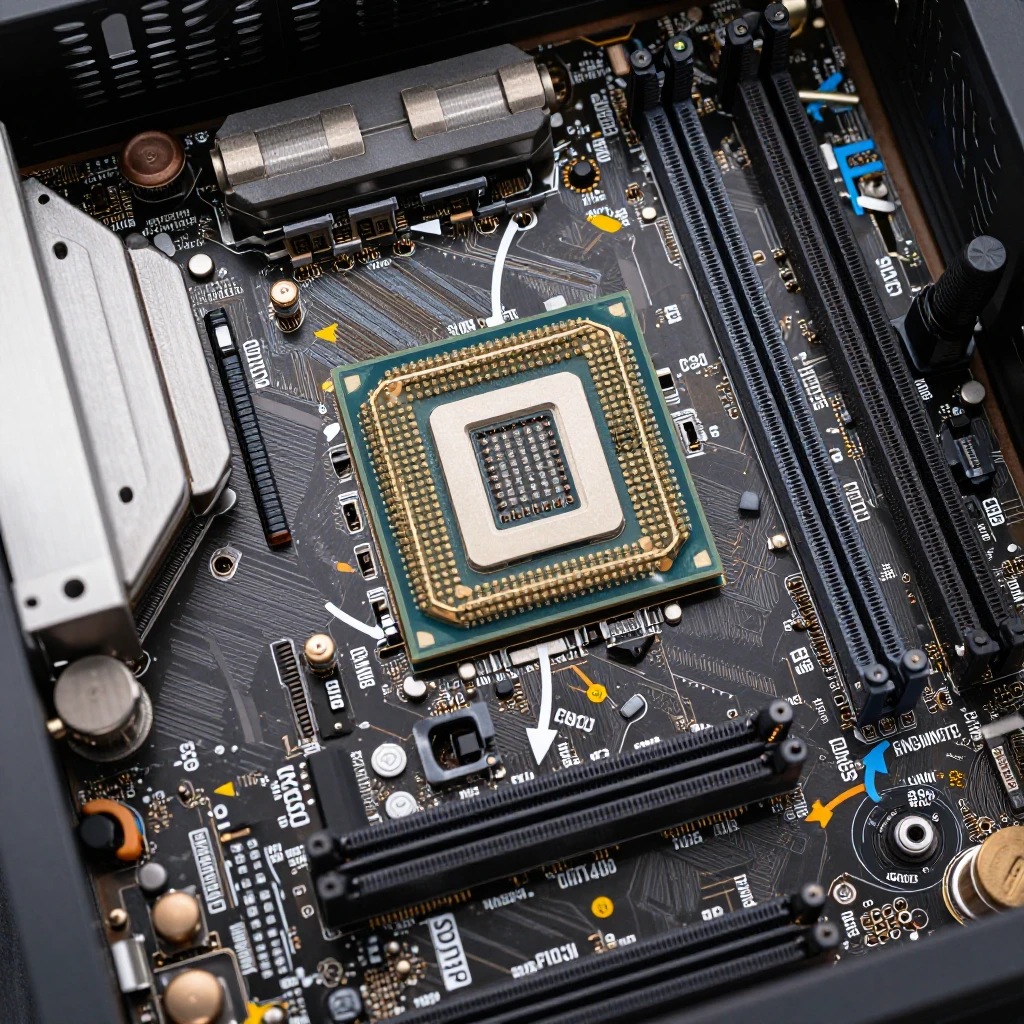
- Install the CPU according to its alignment markers, then attach the cooler as directed. Apply thermal paste only if the cooler does not already have it.
- Seat the RAM in the motherboard’s recommended slots and install the SSD in the correct M.2 position if using one.
- Fit the motherboard’s rear I/O shield if needed, secure the board in the case, and mount the PSU with its fan positioned for the case’s intended airflow.
- Install case fans and the graphics card. Connect motherboard power, CPU power, GPU power, storage cables if needed, and the case’s front-panel connectors.
- Check that no loose screws or cables can obstruct fans, then connect a monitor to the graphics card rather than the motherboard when using a discrete GPU.
On first startup, enter the BIOS or UEFI to check that the CPU, RAM, and SSD are detected. Enable the memory profile supported by your kit if desired, following the motherboard instructions. Install your operating system, motherboard and GPU drivers, and updates from official sources. Avoid driver-download sites that bundle unknown software.
Test performance for gaming and streaming
Test a new gaming PC by checking temperatures and stability, then measuring performance in the games and streaming setup you actually use. A successful boot is only the first check; several short tests can reveal cooling, driver, or power problems.
First, confirm that fans spin, the system recognizes all installed memory, and the GPU driver is active. Use a reputable monitoring tool to observe CPU and GPU temperatures under load. Compare readings with the component manufacturers’ specifications, since safe operating limits vary by model. If temperatures rise unusually fast, check cooler mounting, fan direction, and airflow before running long stress tests.
Run a game you know at your intended resolution and settings. Watch for crashes, visual artifacts, stuttering, and frame rates that fall well below expectations. Close unnecessary background applications, update the game, and check that the display cable is connected to the GPU. One benchmark score should not determine whether a PC is working properly; repeatable performance in your own games matters more.
For streaming, open your chosen software, such as OBS Studio, and test a private or recorded session before going live. Select a hardware encoder when it gives your system a good balance of quality and game performance, or compare it with software encoding if the CPU has spare capacity. Start with a resolution and bitrate your upload connection can sustain, then check the software’s dropped-frame and rendering-lag indicators. Streaming settings depend on the platform, connection, game, and encoder, so avoid copying a preset without testing.
Budget builds involve trade-offs: lower graphics settings may be needed in demanding games, and simultaneous gaming and streaming can reduce frame rates. Record a short test, review both the footage and system metrics, and adjust one setting at a time.
Frequently asked questions
What parts should I prioritize for a budget gaming PC?
Prioritize a GPU suited to your target resolution, then pair it with a capable CPU. After that, budget for 16 GB or more of compatible RAM, an SSD, a reliable PSU, and a case with workable airflow. The best balance depends on your games and whether streaming is part of the plan.
Is it cheaper to build a gaming PC or buy a prebuilt?
Building can offer better control over component quality and price, especially when you find good part deals. A prebuilt can be better value during a sale and often includes system support or a single warranty. Compare the complete specifications and warranty terms before deciding.
Can a budget gaming PC handle streaming?
Yes, many budget systems can stream while gaming if their CPU or GPU has enough capacity and the internet connection can sustain the chosen stream settings. Hardware encoding can reduce CPU load, but test game performance and stream quality together before relying on the setup.
How much RAM does a budget gaming PC need?
16 GB is a practical starting point for many gaming builds. Choose 32 GB if your games, streaming software, browser, and other apps regularly use more memory. Check motherboard support and install a matched RAM kit for a straightforward setup.