Best Streaming Equipment Under $500: Build Your Gaming Setup Without Breaking the Bank
Five hundred dollars sounds like a lot until you start pricing out microphones, webcams, lighting, and capture cards individually. Then it starts feeling tight fast. The good news: a $500 streaming budget is genuinely enough to put together a setup that looks and sounds professional on Twitch or YouTube Gaming — if you spend it in the right order.
This guide breaks down every essential gear category, gives you honest recommendations with real trade-offs, and ends with sample budget builds so you can see exactly where the money goes.
Why $500 Is a Realistic Starting Budget for Streamers
A $500 budget covers every core category of streaming equipment without requiring painful compromises. You won't be running a broadcast studio, but you'll be producing content that's competitive with the majority of active streamers on Twitch and YouTube Gaming.
Most viewers will tolerate imperfect video before they'll tolerate bad audio. That insight alone shapes how smart streamers allocate their first $500. The bar for "good enough" has also dropped significantly as mid-range USB gear has improved — what cost $300 in 2020 now costs under $100.
The realistic ceiling here isn't about cutting corners. It's about recognizing that a Blue Yeti-tier microphone, a 1080p webcam, a basic ring light, and OBS Studio running on your existing PC can produce a stream that looks intentional and sounds clear. That's the actual goal for a first setup.
The Essential Gear Every Gaming Streamer Needs
The core streaming equipment categories are microphone, webcam, lighting, and — for console players — a capture card. Everything else is optional until you've covered those four.
Here's how to think about each one in a gaming context:
- Streaming microphone — The single highest-impact purchase. Bad audio kills streams faster than bad video.
- Webcam or camera — Face-cam builds trust with your audience. Even a modest 1080p webcam makes a difference.
- Lighting — A $30-$50 ring light transforms webcam footage. Lighting is where cheap gear punches above its weight.
- Capture card — Only essential if you're streaming console gameplay. PC streamers can skip this entirely.
- Headset or headphones — You need to hear your game and monitor your stream. A gaming headset handles both.
Stream deck controllers and additional accessories are worth considering once you've covered these five. They improve workflow but don't affect stream quality directly.
Best Microphones Under $100 for Streaming
The best microphone choice under $100 depends on one decision: USB or XLR. USB microphones plug directly into your PC and require no additional hardware. XLR microphones deliver better audio quality but need an audio interface, which adds cost and complexity.
For most new streamers, USB is the right call. The quality gap between a good USB mic and an entry-level XLR setup is smaller than the price gap suggests — and you avoid spending $50-$100 on an interface before you even know if streaming is something you'll stick with.
Top USB options in the under-$100 range:
- Blue Yeti Nano (~$80) — Compact, cardioid pickup pattern, solid noise rejection for gaming environments. The full-size Yeti is popular but physically large for desk setups.
- HyperX QuadCast S (~$90) — Built-in pop filter, tap-to-mute, RGB if that matters to you. Performs well in untreated rooms, which describes most gaming spaces.
- Razer Seiren Mini (~$50) — The budget pick. Surprisingly clean audio for the price, small footprint, and leaves more budget for other gear.
If you want to go the XLR route, the Audio-Technica AT2020 (~$99) paired with a Focusrite Scarlett Solo (~$120) is the classic entry-level XLR combo. That's $220 for audio alone — viable if audio quality is your top priority, but it consumes nearly half your $500 budget.
Best Webcams and Cameras for Streaming on a Budget
The best budget webcam for streaming is the Logitech C920 or its successor the C920s — both deliver 1080p/30fps face-cam footage for around $70-$80 and have been the default recommendation in the streaming community for years for good reason.
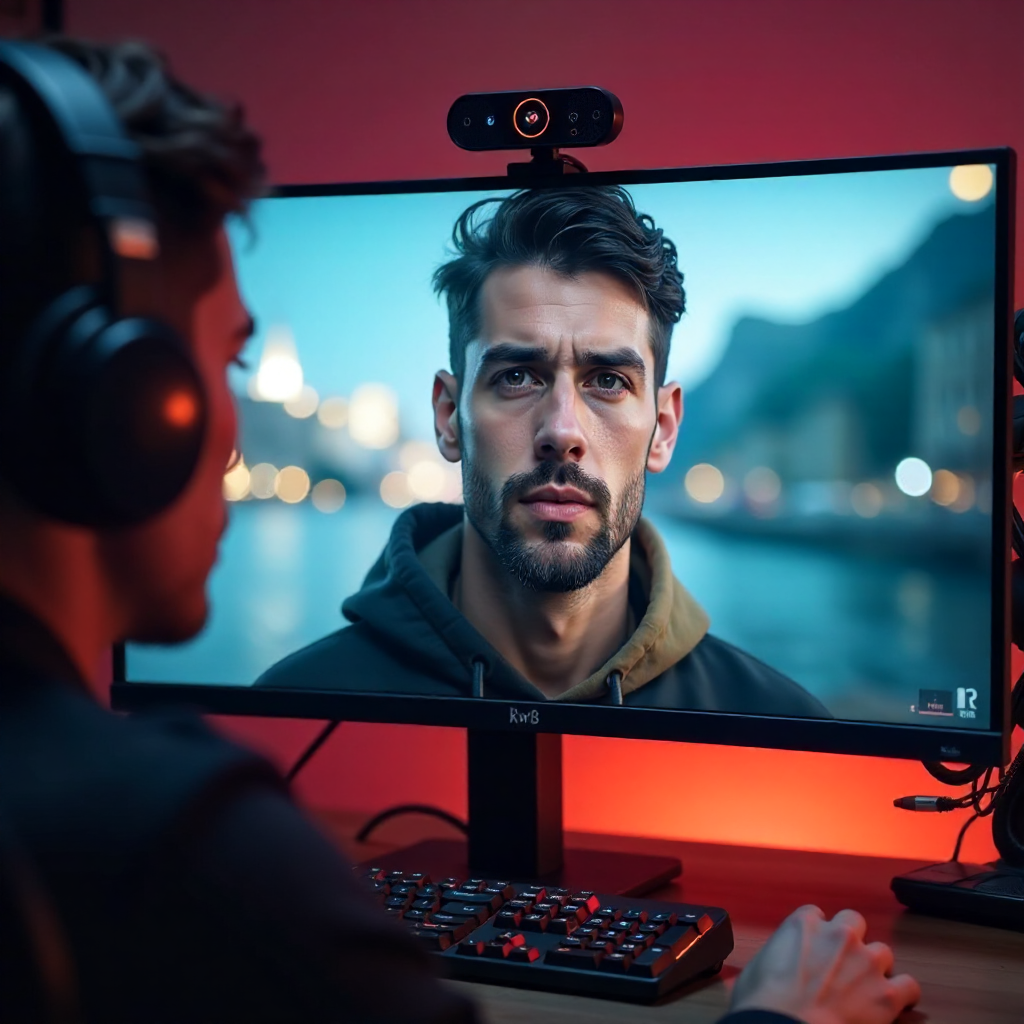
At this price point, you're not getting great low-light performance or 60fps, but you are getting reliable autofocus, decent color accuracy, and software compatibility with OBS Studio out of the box. That's the practical checklist for a streaming webcam.
A few alternatives worth knowing:
- Logitech C922x (~$100) — Adds background removal features and slightly better low-light handling. Worth the extra $20-$30 if your streaming space isn't well-lit.
- Razer Kiyo (~$80) — Has a built-in ring light, which sounds clever until you realize the light quality is mediocre. Better to buy a separate ring light and a plain webcam.
- Elgato Facecam (~$150) — The premium option in this category. Fixed-focus lens, excellent image quality, but at $150 it takes a significant chunk of a $500 budget.
One honest note: a used Sony mirrorless camera with a capture card can produce dramatically better video than any webcam in this price range. If face-cam quality is your priority, that path exists — but it's a different kind of setup and harder to recommend as a starting point.
Lighting, Capture Cards, and the Extras Worth Buying
Lighting is the most underrated purchase in a budget streaming setup. A basic ring light or key light in the $30-$60 range will improve your webcam footage more visibly than upgrading from a $70 webcam to a $150 one.
The Elgato Key Light Air (~$100) is the enthusiast pick — adjustable color temperature, app-controlled, mounts cleanly to a desk. The Neewer 10" ring light (~$30) is the budget pick and does the job for most setups. Either works. The difference is convenience, not quality.
For capture cards, the calculus is simple: if you're streaming PC games, you don't need one. OBS Studio handles PC capture natively at no cost. If you're streaming from a PS5, Xbox Series X, or Nintendo Switch, a capture card is non-negotiable.
- Elgato HD60 X (~$150) — The standard recommendation. Supports 4K30 or 1080p60 passthrough, works with OBS and Elgato's own 4K Capture Utility.
- AVerMedia Live Gamer Portable 2 Plus (~$120) — Slightly cheaper, comparable performance, less polished software.
Stream deck controllers (the Elgato Stream Deck Mini runs about $80) are genuinely useful for managing scenes, muting audio, and triggering alerts mid-stream. They're not essential on day one, but they're worth budgeting for once the basics are covered.
How to Prioritize Your $500 Budget (Sample Build Breakdowns)
The right budget allocation depends on your platform and priorities. Here are three practical builds that stay within $500.
PC Streamer — Balanced Build (~$490)
- Microphone: HyperX QuadCast S — $90
- Webcam: Logitech C920s — $75
- Lighting: Neewer ring light — $35
- Headset: HyperX Cloud II — $80
- Stream Deck Mini: Elgato — $80
- Mic arm + accessories: ~$30
- Total: ~$390 (leaves $110 for upgrades)
Console Streamer — Capture Card Priority (~$480)
- Capture card: Elgato HD60 X — $150
- Microphone: Razer Seiren Mini — $50
- Webcam: Logitech C920 — $70
- Lighting: Neewer ring light — $35
- Headset: Corsair HS55 — $50
- Total: ~$355 (leaves room for a stream deck later)
Audio-First Build — For Streamers Who Talk a Lot (~$495)
- XLR mic: Audio-Technica AT2020 — $99
- Audio interface: Focusrite Scarlett Solo — $120
- Mic arm: Rode PSA1 — $99
- Webcam: Logitech C920s — $75
- Lighting: Elgato Key Light Air — $100
- Total: ~$493
The audio-first build skips a dedicated headset and stream deck entirely — a reasonable trade if commentary quality is central to your content.
Free Tools That Stretch Your Budget Further
OBS Studio is free, open-source, and used by professional streamers on Twitch and YouTube Gaming worldwide. It handles scene management, audio mixing, transitions, and stream encoding without costing a dollar.
This matters for budget planning because it means your $500 goes entirely toward hardware. You don't need to budget for streaming software. OBS supports all major platforms, integrates with capture cards, and has a large plugin ecosystem for alerts, overlays, and chat integration.
A few other free tools worth knowing:
- Streamlabs — Free tier covers alerts, overlays, and basic stream management. Built on OBS but with a more beginner-friendly interface.
- Canva — Free tier is sufficient for creating stream overlays, panels, and thumbnails.
- Audacity — Free audio editor for recording, editing, and cleaning up mic samples before you go live.
The combination of quality budget hardware and free software is genuinely what makes a $500 streaming setup viable. You're not cutting corners — you're just not paying for things that don't need to cost money.
Frequently Asked Questions
What is the single most important piece of streaming equipment to buy first?
A good microphone. Audio quality affects viewer retention more than video quality. Start with a USB microphone like the Razer Seiren Mini or HyperX QuadCast S before investing in a webcam or lighting.
Can I stream with just a gaming headset microphone?
Yes, and many streamers start this way. Headset mics like those on the HyperX Cloud series are adequate for early streams. The audio won't be as clean as a dedicated streaming microphone, but it's a legitimate starting point while you save for an upgrade.
Do I need a capture card if I stream from a PC?
No. OBS Studio captures PC gameplay directly through your GPU without any additional hardware. Capture cards are only necessary when streaming from a console like a PS5 or Xbox Series X.
Is a $500 streaming setup good enough for Twitch or YouTube?
Absolutely. Most active streamers on both platforms are running setups in this range or lower. Stream quality matters, but consistency, personality, and community engagement matter more for growth.
What should I upgrade first after my initial setup?
If you started with a USB microphone, an XLR mic with an audio interface is the most noticeable upgrade. If audio is already solid, better lighting or a higher-quality webcam like the Elgato Facecam will improve your visual presentation meaningfully.